Movies
These Movies represent a comprehensive walkthrough of key application features and can help users of all levels increase their productivity and understanding of Stardraw Design 7.4.
First, a high-level overview...
#01 Introductory Tour
18m 5s Basic An introduction to key concepts and features of Stardraw Design 7.4: the latest version of Stardraw.com's award-winning system design and documentation software for professional A/V integrators.
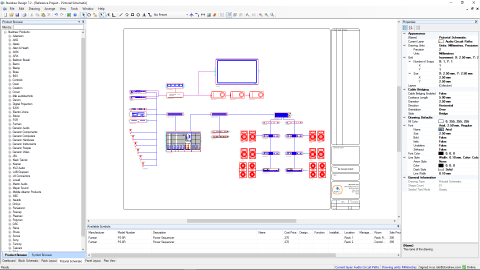
#02 Basic Use
18m 20s Basic A quickstart guide to the basics of Stardraw Design 7: creating a project, creating drawings, populating products within the project, use of Attributes and a tour of all the drawing Modules.

#03 Personalization
6m 33s Basic How to configure Stardraw Design 7.4 to use custom personal details including your company logo, how to install and swap out manufacturer libraries, configuration of application settings, and more.
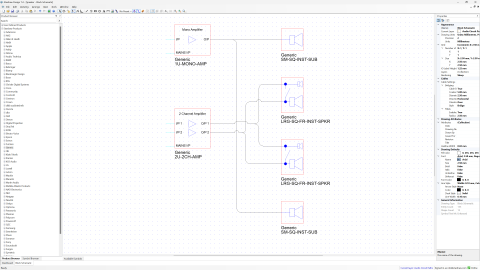
#04 Cable Tool
2m 50s Basic How to use the Cable Tool to show system interconnections in Block Schematic drawings. How to draw multi-segment cables quickly and easily. Tips and tricks, shortcuts and accelerators.
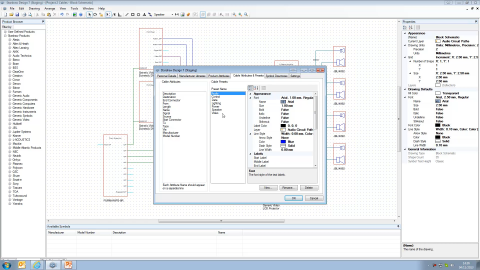
#05 Cable Presets
7m 45s Basic Using Cable Presets to speed up Block Schematic drawings by using and applying pre-defined styles and values in your Cables. Create, edit and manage custom Cable Presets.
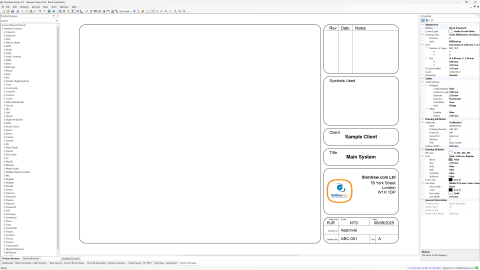
#06 Title Blocks - An Introduction
2m 18s Basic The nature of Title Blocks and information you must have in place to use them effectively. How to set or change the data they use and how to select a different Title Block Template.
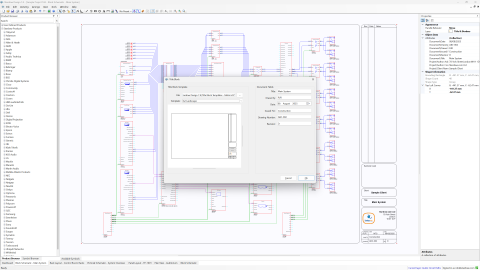
#07 Title Blocks - Traditional Method
3m 17s Basic How to apply a Title Block to drawings in your project and include key information about the drawing, author and project using the default Title Block Templates.
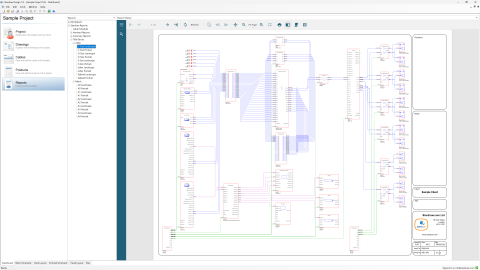
#08 Title Block Reports - New Method
3m 34s Basic Title Block Reports, a new feature in Stardraw Design 7.4, that quickly applies Title Blocks to all drawings in a fraction of the time required by previous methods.
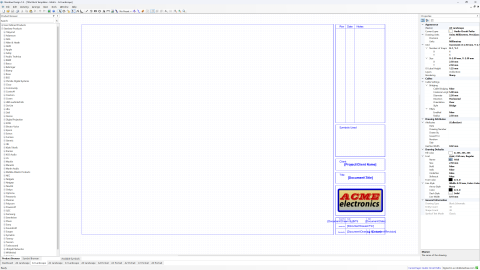
#09 Customizing .S07 Title Blocks
3m 26s Intermediate How to customize the default .S07 Title Block templates to suit your purposes.
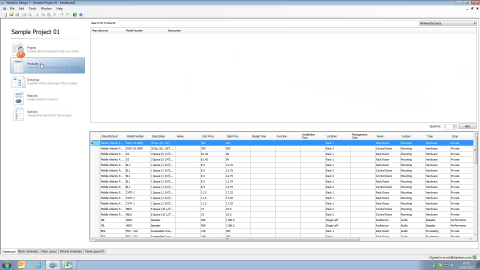
#10 Attributes in Products
8m 16s Intermediate Setting Attribute values, defining default Attributes, product-specific Attributes e.g. Price, the Product Attributes spreadsheet, outputting Attributes.
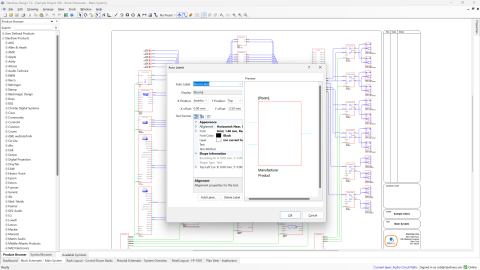
#11 SD7.4 - Auto Labels
2m 56s Intermediate How to set Auto Labels in Stardraw Design 7.4, to show Attribute values on Block Schematic symbols without the need to edit those symbols.
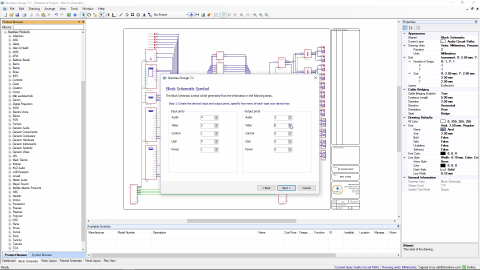
#12 Adding New Products
8m 13s Intermediate How to add products to your library. Using the Symbols Request service, User Defined Product wizard, creating new UDPs from existing products, editing UDP symbols.
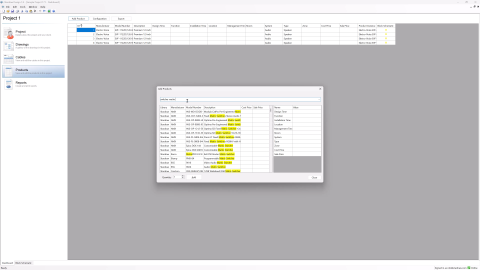
#13 The Add Products Dialog
2m 46s Basic Using the Add Products dialog in Stardraw Design 7.4 to find products quickly, and save time by pre-defining Attribute values when adding them to your project.
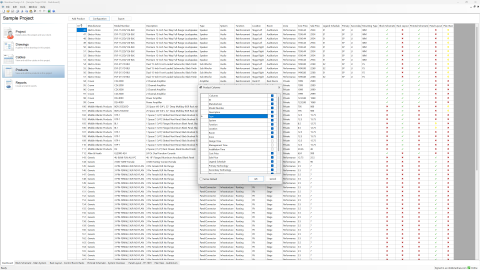
#14 Grid Views: Sorting, Filtering, and more
3m 54s Basic How to manage data display in Stardraw Design 7.4's grid views by sorting, filtering, arranging columns and configuring column visibility.

#15 Grid Views: Entering Data
2m 4s Basic Using Stardraw Design 7.4's grid views to accelerate data entry; tips, tricks and productivity tools.
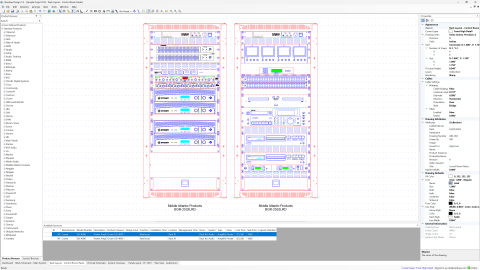
#16 Products View: the Drawing columns
2m 21s Basic Covering the purpose of the Drawing columns, the meaning of their icons, and how to use them to manage products in drawings.
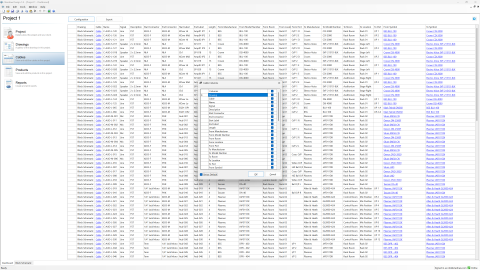
#17 Grid Views: Setting Defaults
1m 55s Basic How to configure the Cables View and Products View to show just the columns that you want, in the order that you want.

#18 Deleting Unused Products
2m 23s Basic How to remove products that are unused in your project, to reduce file size and improve performance.
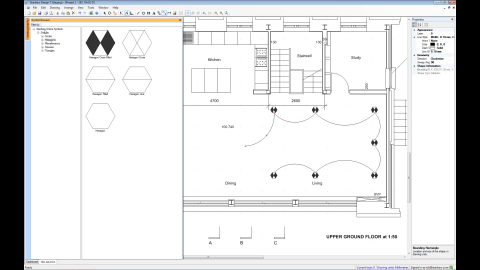
#19 Plan View Module
6m 23s Basic Overview of the Plan View Module: importing a DWG floorplan, positioning symbols using the Symbol Browser, the Cable Arc tool, defining your own custom Symbol folders.
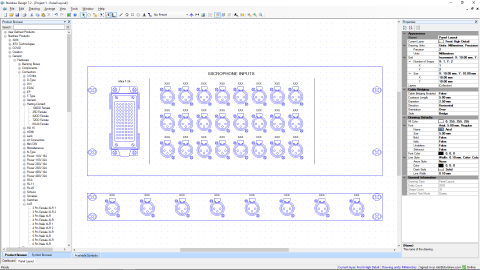
#20 Panel Layouts
7m 57s Intermediate How to design custom connection plates. Includes use of the Generic Hardware library, Paste Array, Distribute and Align commands, Engraving and Dimensions, and available views.
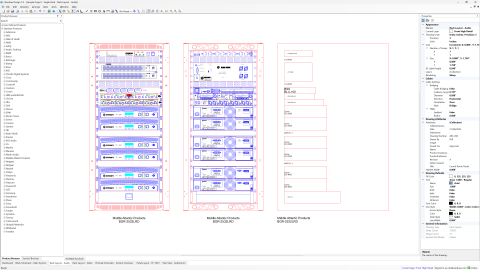
#21 Mixing Up Views
3m 15s Basic Using the Paste to Current Layer command to create different 'views', e.g. to show the Front, Rear and Side view of a rack at the same time, or to use symbols in other drawing types.
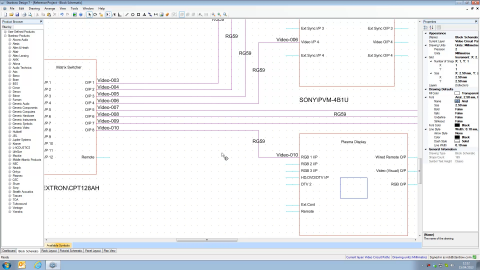
#22 Cable Labels and Cable Schedules
5m 25s Basic Setting Start, Middle and End labels, with or without sequential numbering, generation of a Cable Schedule from a Block Schematic drawing.
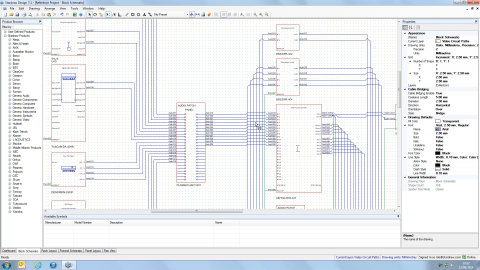
#23 Cable Bridges
4m 33s Basic A walkthrough of the Cable Bridges feature: a much-requested and popular addition, making Cable Bridges a togglable document mode.
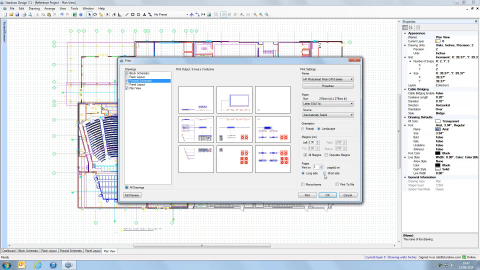
#24 Printing
3m 1s Basic A run through of the advanced Print dialog which makes it easy to batch print from your project with all print options easily accessible.
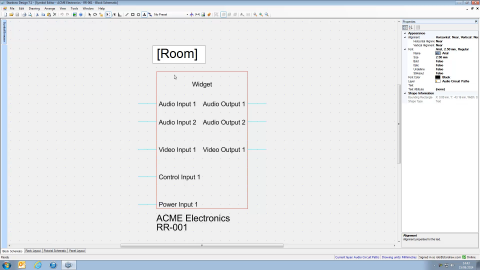
#25 Text Attributes
6m 13s Advanced An in-depth look at the techniques you can use to display Attribute values in both Library and Custom symbols.
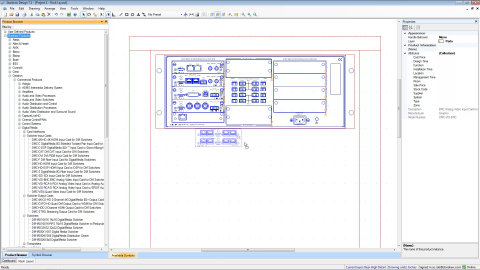
#26 Modular Symbols
3m 15s Intermediate How to correctly insert options cards into modular sub-frames using the Module Targets layer and Snap to Path modifier.
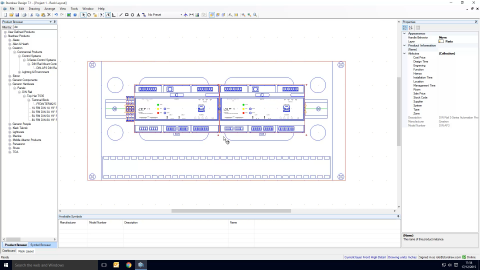
#27 Using DIN Rails
2m 16s Intermediate How to select and position DIN rail mounted products in Stardraw Design 7.1's Rack Layout drawing environment, using the Module Targets layer and Snap to Path modifier.
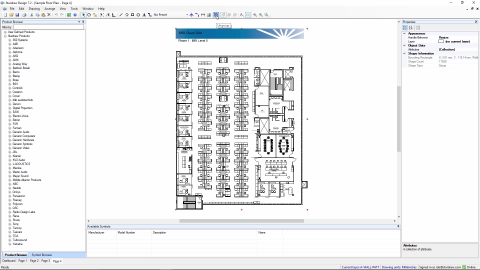
#28 Importing PDF Files
1m 23s Basic How to import a PDF file, creating a new project with a drawing for each page of the PDF, and editing the resulting drawings.
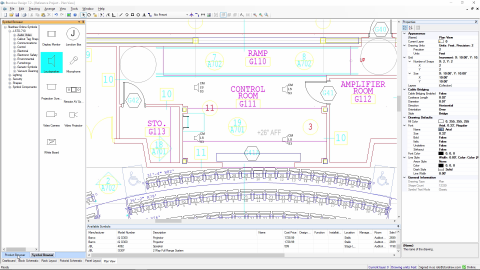
#29 J-STD-710 Symbols
3m 28s Intermediate An overview of Stardraw Design 7.4's support of the InfoComm/CEDIA/CTA J-STD-710 standard, Audio, Video and Control Architectural Drawing Symbols.
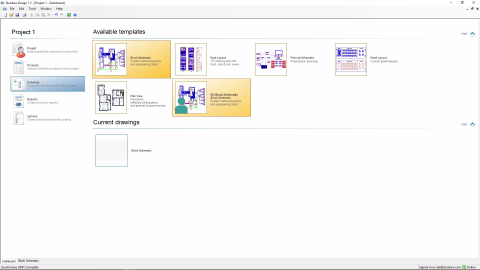
#30 User Templates
3m 17s Intermediate How to create and manage User-Defined drawing templates with your own default settings for, e.g., measurement units, colors, fonts, layers etc.
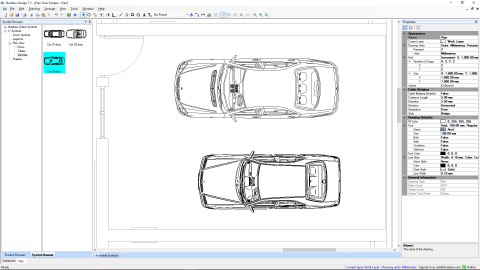
#31 Customizing the Symbol Browser
4m 43s Intermediate An overview of the Symbol Browser, how to add your own Symbol Directories and how to export a drawing as a custom symbol in DWG, DXF or S01 format.
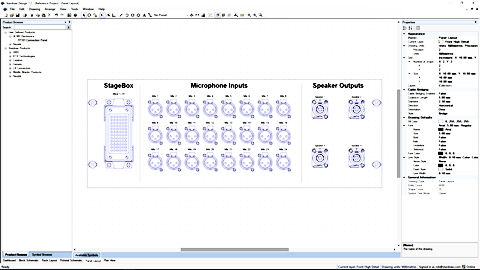
#32 Rackmount Connection Panels
3m 55s Intermediate How to take a custom connection panel created in a Panel Layout drawing and use it as a product symbol in Rack Layout drawings.
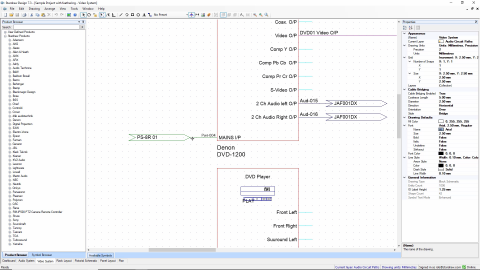
#33 Feathers
4m 54s Intermediate Using smart Feather symbols to show that a cable continues elsewhere in the same or a different drawing, and their effect on the Cable Schedule.
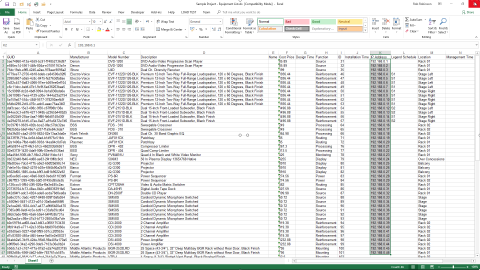
#34 Importing a List
5m 33s Advanced How to add Attributes, update Attribute Values and add Products into projects by manipulating an Equipment List spreadsheet in Excel.
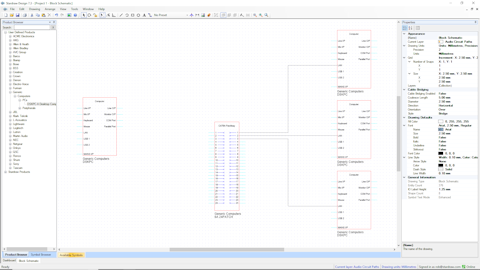
#35 SD7.4 - Flipping Ports
2m 10s Intermediate How to edit symbols in Stardraw Design 7.4 to change an input port into an output port, to assist in the neat layout of system drawings.

#36 Resizing Symbols
2m 7s Basic Using the Handle Behavior property to control whether a Symbol or Group will be moved or resized when dragging a selection handle.
The Movies below show how to troubleshoot commonly reported problems and answer frequently asked questions.
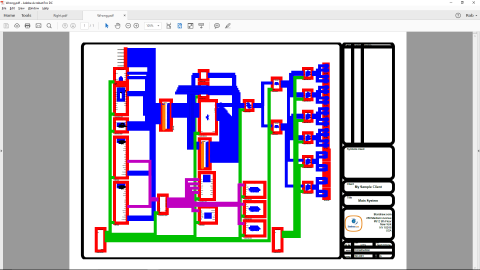
Thick Lines in Print
2m 50s Basic Using the wrong setting for Minimum Printed Line Width can result in very thick lines in Print or PDF output. Here's how to avoid that mistake.
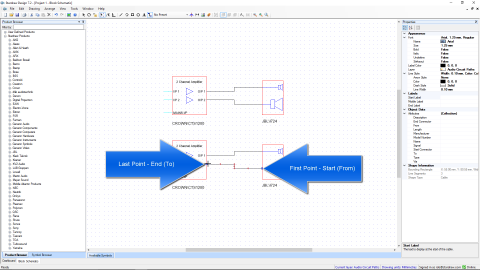
Reversed Cables
2m 07s Basic The direction in which you draw Cables affects the ordering of data in exported Cable Schedules. This movie shows how to fix Cables - and Cable Schedules - that are reversed.
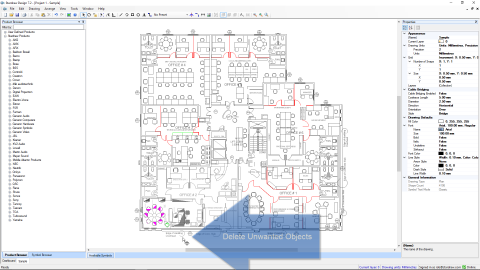
Blank Imported DWG
2m 31s Intermediate Sometimes it appears that an imported DWG file results in an empty drawing. This movie shows how to manage the drawing so that you can work with the data you need.
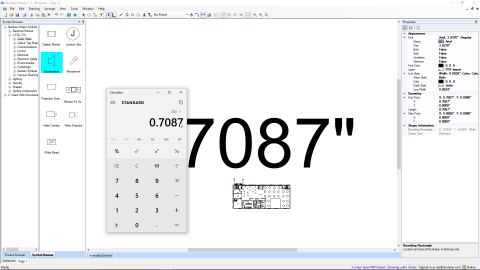
Scale Imported PDFs
5m 56s Intermediate Techniques for adjusting the scale of imported PDFs to return the drawing to a 1:1 scale which is suitable for the addition of symbols, dimensions and other objects.
You need to be signed in to use the Stardraw Assistant.
Sign In